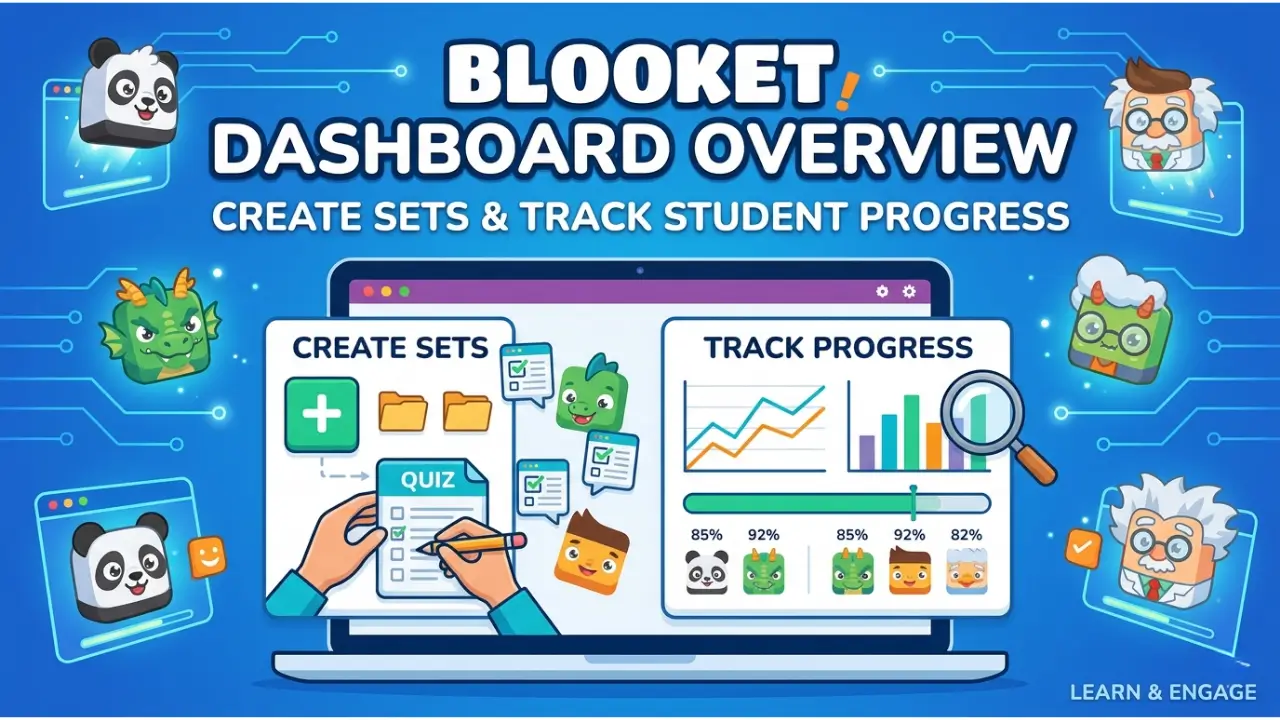
Blooket Dashboard Overview to Create Sets and Track Student Progress
The Blooket Dashboard is the central control panel of the Blooket platform where users can access all learning tools in one place. It is designed to make learning interactive, organized, and easy for both students and teachers.
When you log in to Blooket, the dashboard is the first screen you see. From here, you can create question sets, join games, track performance, explore pre-made quizzes, and manage your account settings.
How to Use the Blooket Dashboard
The Blooket Dashboard acts as a hub where all learning activities are managed. It includes multiple sections such as Play, Discover, Create, Stats, Market, and more.
Each section has a specific purpose, making it easy for users to navigate and perform different tasks without confusion. The interface is simple and user-friendly, which helps both beginners and advanced users.
- Create question sets
- Join or host games
- Track performance and stats
- Explore pre-made quizzes
- Manage account settings
Play Section in Blooket Dashboard
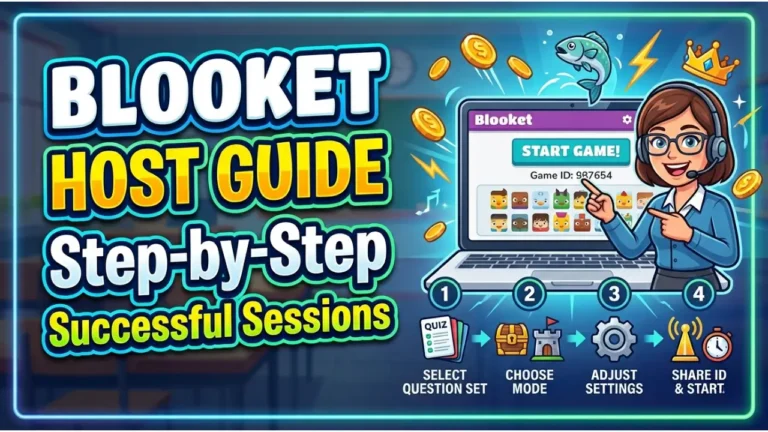
The Play section is used to join or host live games. If a teacher or friend shares a Game ID, you can enter it here to join the session.
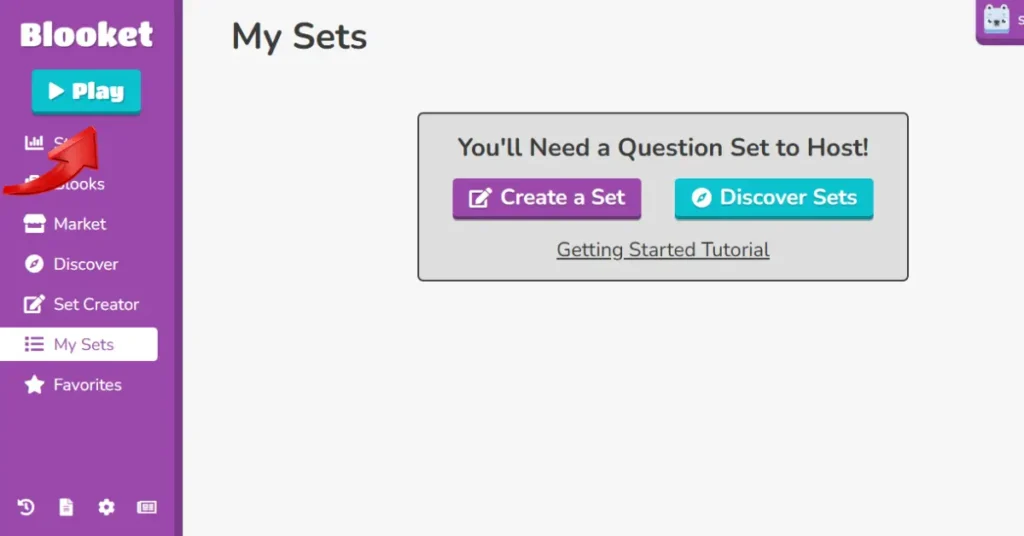
This section focuses on real-time learning where students answer questions, compete with others, and earn rewards based on performance.
Discover Section
The Discover section allows users to explore thousands of pre-made question sets created by other educators.
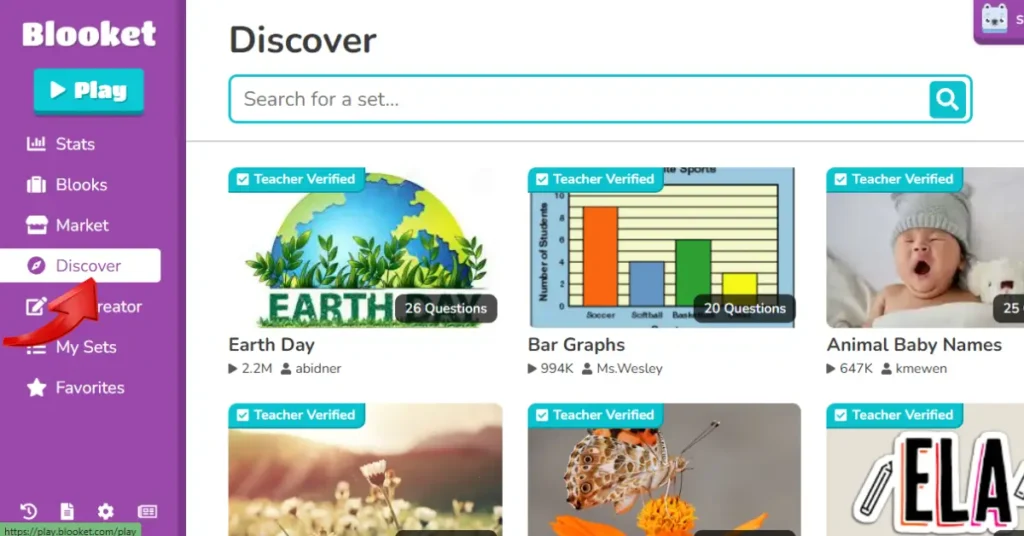
Users can search topics using keywords or browse categories. These sets can be used for practice, assignments, or live games.
- Search question sets by topic
- Use pre-made quizzes
- Play or host games using sets
- Save time on content creation
Create Section
The Create section allows users to build their own question sets based on any subject or topic.
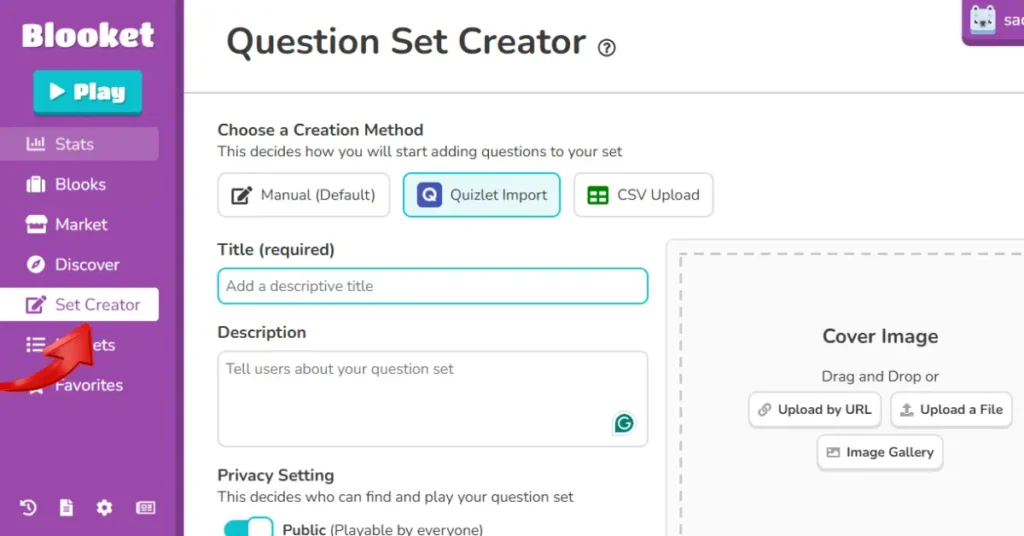
Teachers can customize learning content by adding questions, answers, and sometimes images. This helps in creating personalized quizzes for students.
My Sets Section
The My Sets section stores all the question sets created by the user. It helps keep content organized and easy to access.
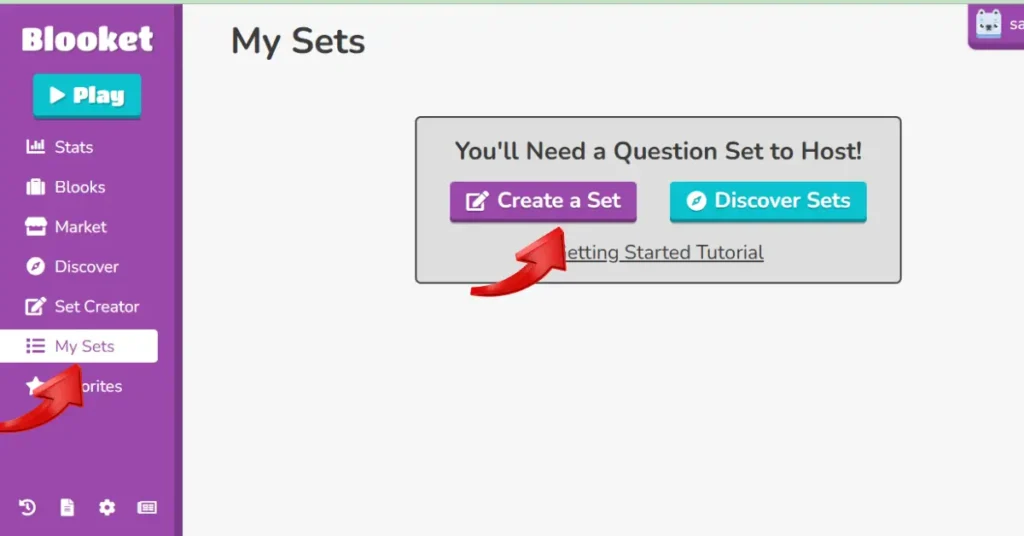
Users can edit, reuse, or assign these sets for homework or live games.
Stats Section
The Stats section helps users track their learning performance and progress over time.
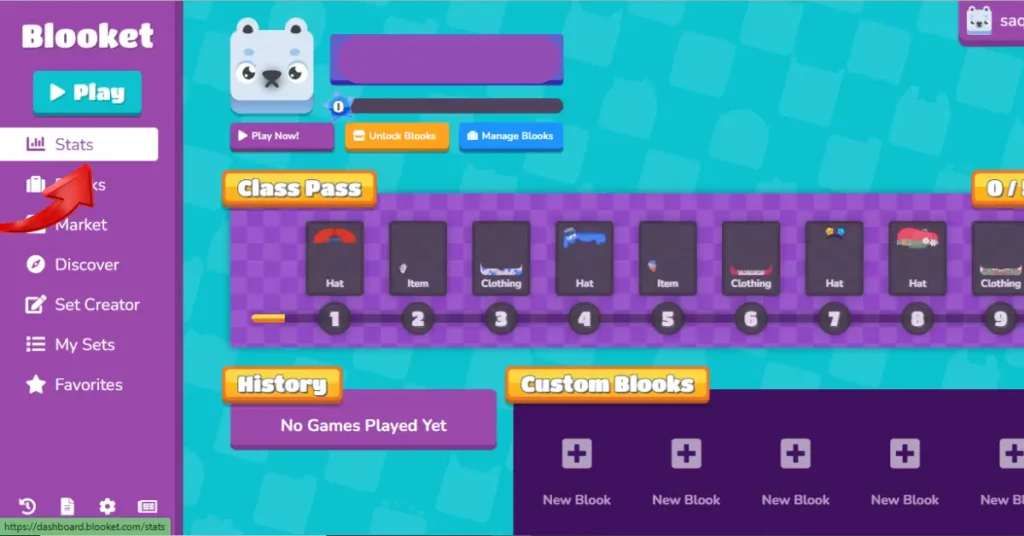
- Total games played
- Correct and incorrect answers
- Earned tokens
- Unlocked Blooks
- Overall performance tracking
Blooks Section
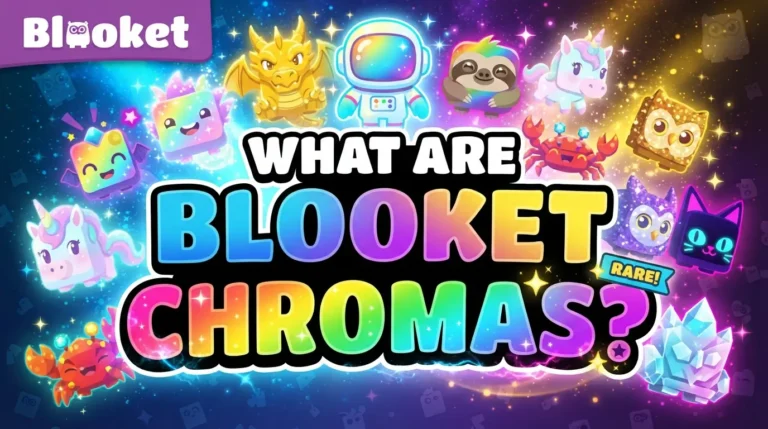
Blooks are the character avatars used in the Blooket games. Each player selects a Blook during gameplay.
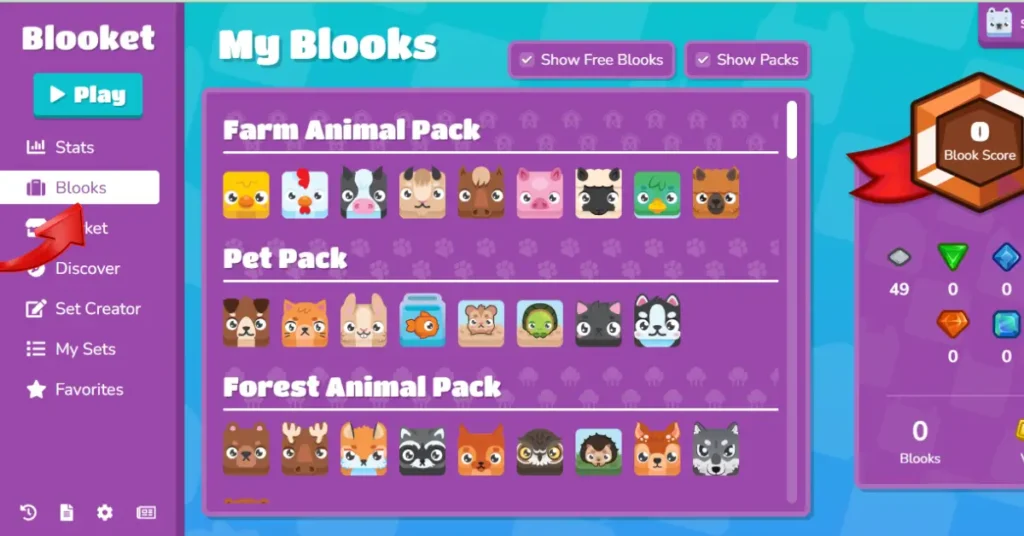
This section shows all unlocked and available Blooks. Some are free, while others require tokens earned from games.
Market Section
The Market section allows users to spend earned tokens to unlock new rewards.
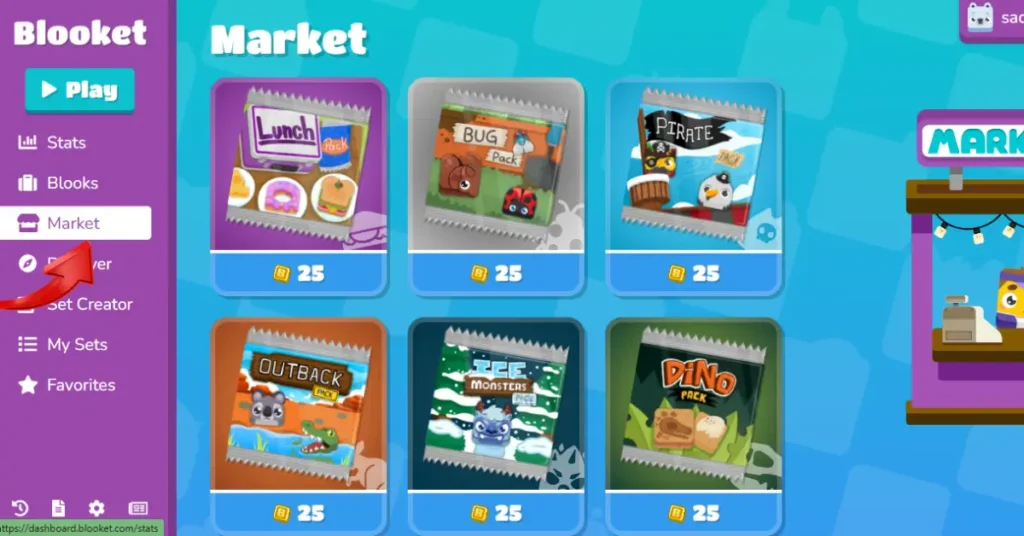
Users can buy Blook packs and special items that make gameplay more exciting. Seasonal events also introduce limited-time items.
History Section
The History section shows all previously played or hosted games.
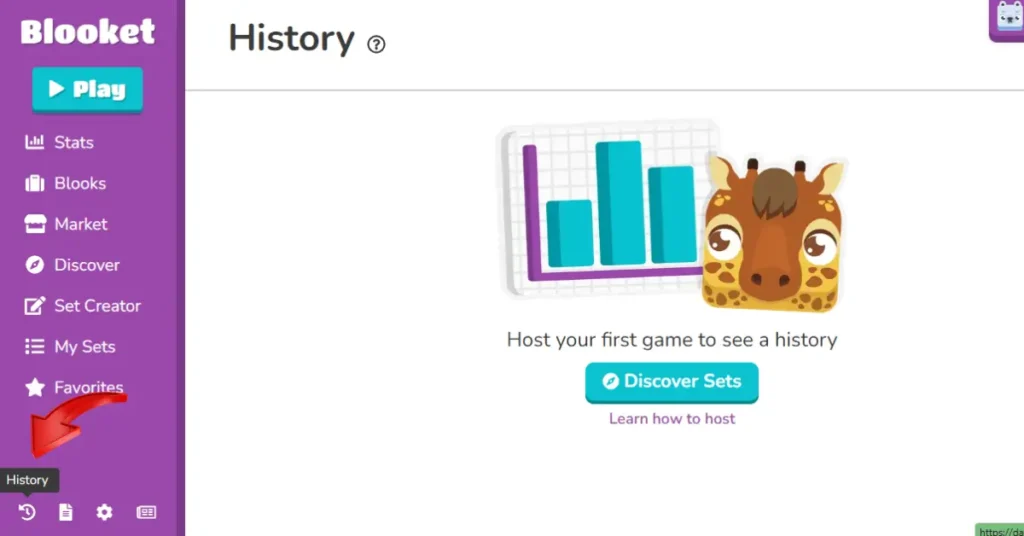
It includes game results, scores, dates, and participant details. This helps users review their performance and learning progress.
Favorites Section
The Favorites section is used to save important question sets for quick access.
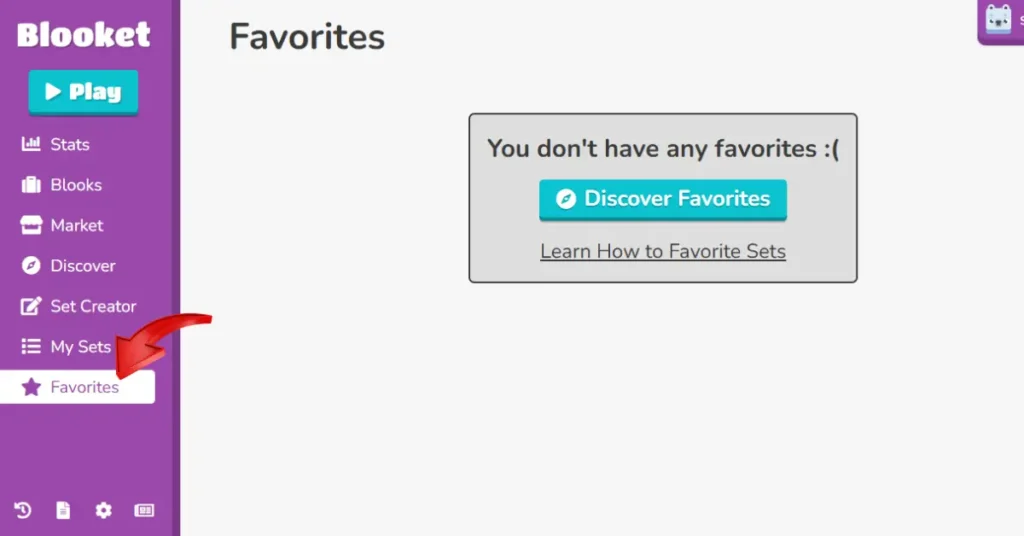
- Mark sets with a star
- Quick access to saved content
- Avoid searching again and again
- Useful for frequently used topics
Homework Section
The Homework section is mainly used by teachers to assign tasks to students.
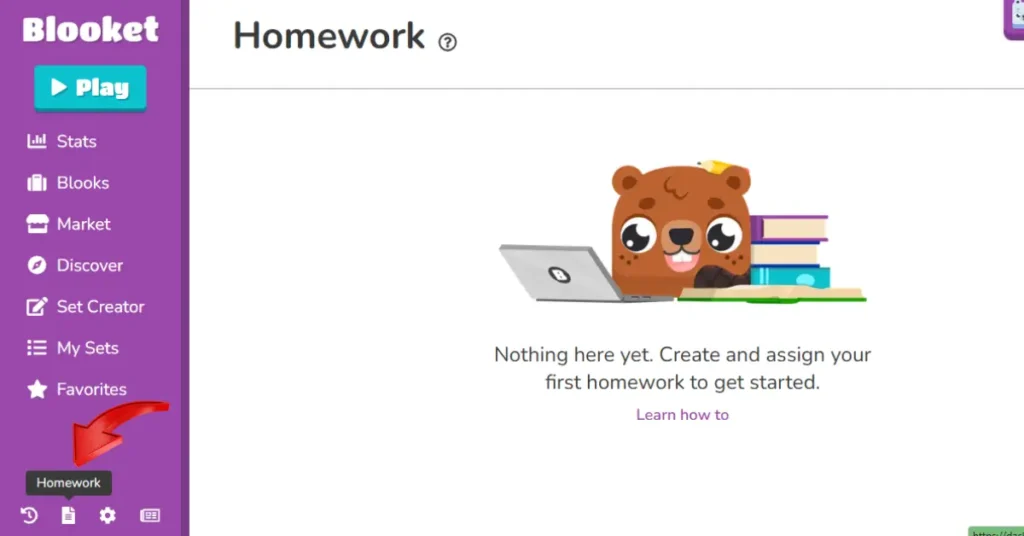
Teachers can set deadlines, track submissions, and monitor student performance easily.
News Section
The News section provides updates about new features, changes, and announcements from Blooket.
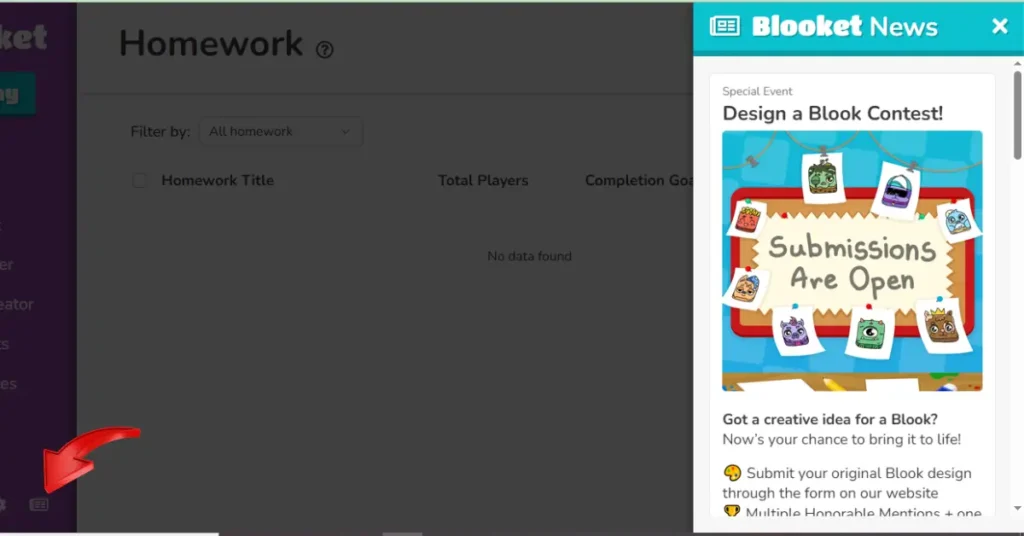
It keeps users informed about platform improvements and new learning tools.
Settings Section
The Settings section allows users to manage their account details and preferences.
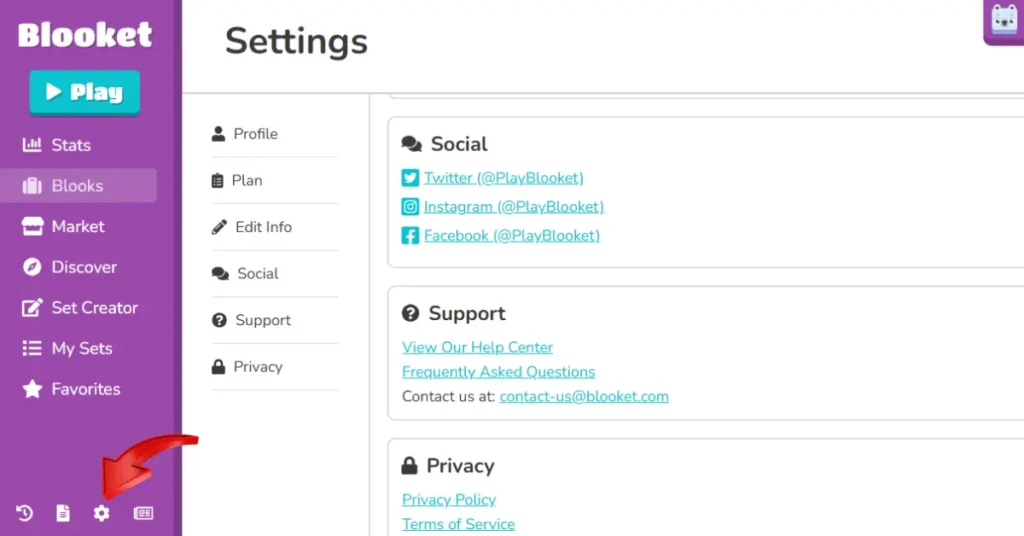
Users can update personal information, change passwords, or adjust account settings.
- Change username or email
- Update password
- View account details
- Delete account if needed
- Manage privacy settings
Using Blooket Dashboard Without an Account
Users can still join games without creating an account by entering a Game ID.
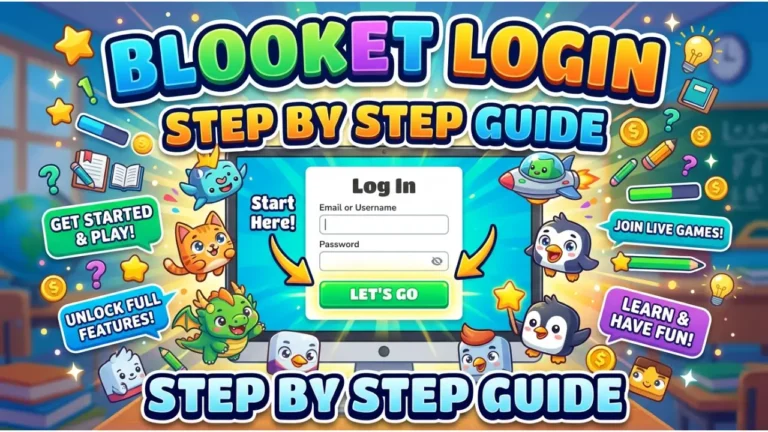
However, full features like creating sets, tracking stats, and saving progress require login.
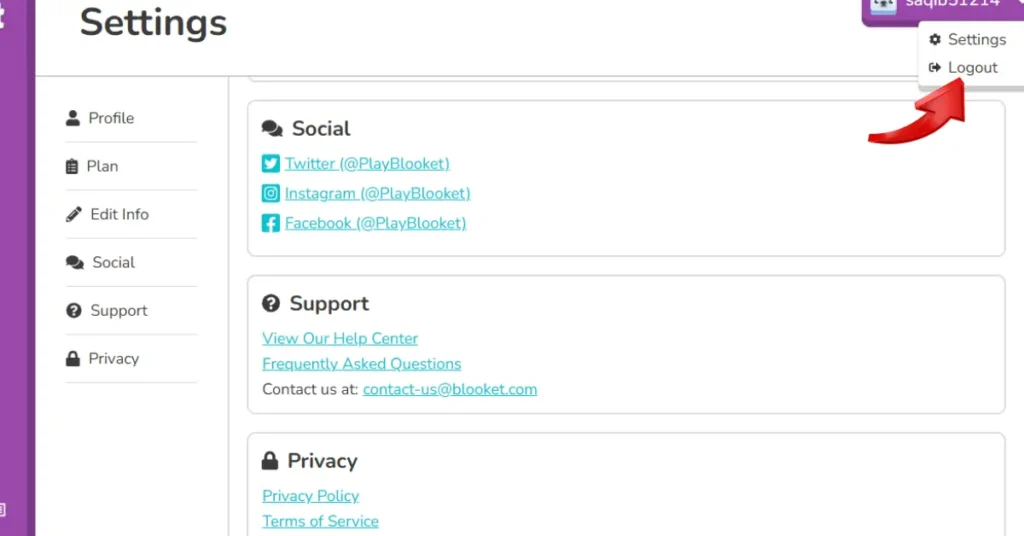
How to Logout from Blooket Dashboard
To log out, click on your profile icon and select the logout option. This will safely sign you out of your account.
Importance of the Blooket Dashboard
The Blooket Dashboard is important because it organizes everything in one place and makes learning easier.
It helps teachers manage classrooms and allows students to track their progress effectively. It also saves time and improves learning efficiency.
- Organizes all tools in one place
- Helps teachers manage students
- Tracks learning progress
- Improves engagement and focus
- Makes learning interactive and fun
Conclusion
The Blooket Dashboard is a complete learning control system that brings all features together in a simple interface. It allows users to create games, join sessions, track progress, and manage their learning activities easily.
Once users understand the dashboard, they can fully utilize Blooket for a more organized and interactive learning experience.
Frequently Asked Questions
What is the Blooket Dashboard?
It is the main control panel where users can create games, join sessions, track progress, and manage account settings.
Can I use Blooket without an account?
Yes, you can join games using a Game ID without logging in, but full features require an account.
How do I change my username?
Go to Settings and edit your profile information to update your username.
How can I reset my password?
Click on “Forgot Password” on the login page and follow the instructions sent to your email.
Can I delete my Blooket account?
Yes, you can delete your account from the Settings section under account options.