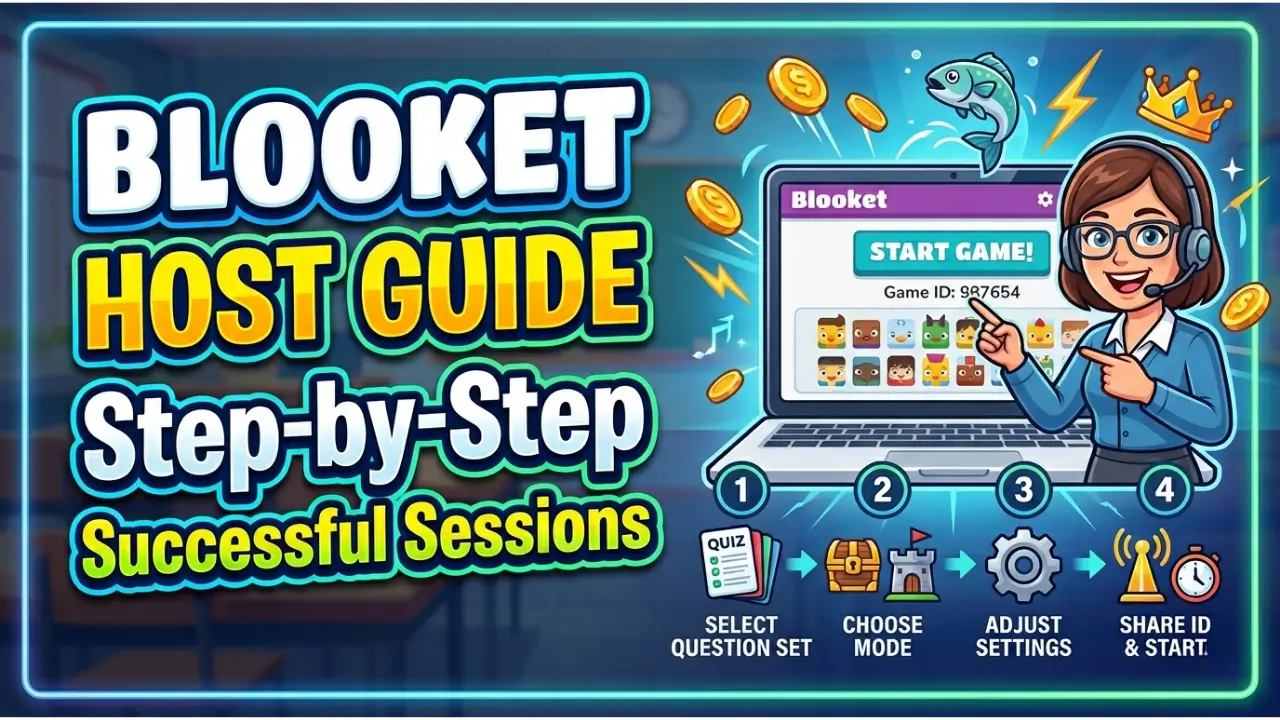
Blooket Host Step by Step Guide to Run Successful Learning Sessions
Blooket is a powerful gamified learning platform that allows teachers, students, and even trainers to turn simple question sets into interactive games. While many users know how to join a Blooket game, fewer understand how to properly use the Blooket host feature to run a complete learning session.
The Blooket host option allows you to control the entire game experience, choose question sets, select game modes, and share access with players using a Game ID or link. This makes learning more engaging, competitive, and fun for everyone involved.
Whether you are a teacher conducting a classroom quiz or a student sharing knowledge with friends, hosting a Blooket game gives you full control over the learning environment.
How to Host a Blooket Session?
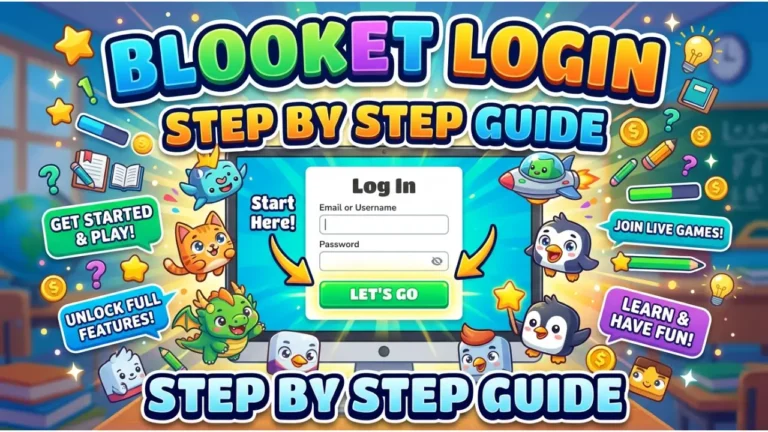
To host a Blooket game, you require a Blooket account. Once logged in, you can select a question set, choose a game mode, adjust settings, and share the Game ID with players to start the session.
The process is simple but highly interactive, designed to make learning smooth and enjoyable.
Step 1: Select a Question Set
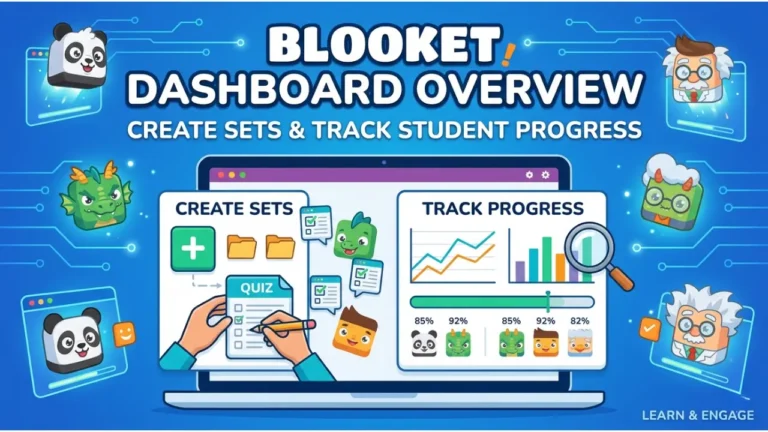
After logging into your Blooket account, you will land on the dashboard where you will see options like Create and Discover.
The Create option allows you to design your own question sets based on any subject. You can add customized questions, adjust difficulty levels, and make learning more relevant for your audience.
The Discover option gives access to thousands of pre-made question sets created by other users. These can be used directly or modified according to your needs.
Step 2: Click on Host Button
Once you have selected your question set, you will see multiple options such as Play Solo, Assign Homework, or Host Game.
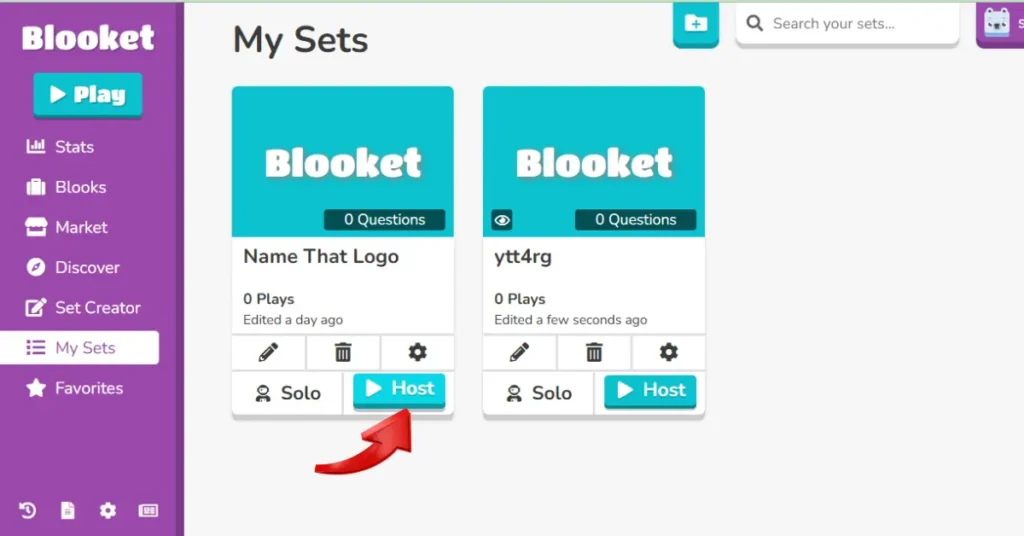
To start a live session, simply click on the Host Game button. This will take you to the next stage where you prepare your game environment.
Step 3: Select Game Mode
Blooket offers multiple game modes, each designed with a unique learning style in mind. Some popular modes include Classic, Gold Quest, Fishing Frenzy, Tower Defense, and Cafe.
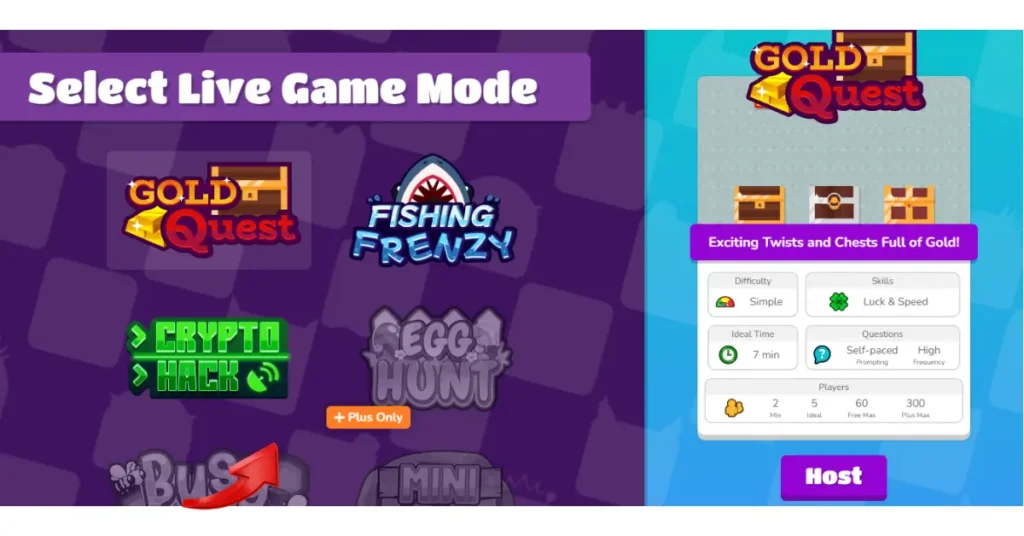
Each mode changes how students interact with questions. For example, in Gold Quest, players collect gold based on correct answers, while in Tower Defense they build strategies while answering questions.
After selecting the mode, click Host to continue.
Step 4: Adjust Game Settings and Rules
Before starting the game, you can customize important settings to improve the experience.
Timer allows you to set a fixed duration for the game. For example, you can set a 10-minute limit for quick quizzes.
Goal settings vary depending on the game mode. In Fishing Frenzy, players aim to catch a certain weight of fish, while in Gold Quest, the goal is to collect a specific amount of gold.
Other important options include showing instructions before starting, allowing late joins, enabling random names, and controlling student account access.
These settings help you shape the game according to your classroom or group needs.
Step 5: Start Hosting the Game
Once everything is set, click on the Host Game button again to officially start your session. The game system will generate a live environment where players can join and participate in real time.
Step 6: Share Game ID with Players
After hosting begins, you will receive a Game ID, QR code, and invite link.
Players can join using any of these options. Once they enter the game, they will appear in your live lobby.
You can also monitor players joining in real-time, mute sound notifications, or switch to full-screen mode for better visibility.
What You Need to Host a Blooket Game
Before hosting a game, you need a few basic requirements to ensure smooth gameplay.
- You need a device such as a laptop, tablet, or smartphone to control the session. A larger screen is recommended for classroom environments.
- A Blooket account is required to access hosting features. Without logging in, hosting is not possible.
- A stable internet connection is essential because Blooket runs completely online and depends on real-time interaction.
- Finally, you need a question set and a target audience such as students, friends, or trainees who will participate in the game.
Tips for a Successful Blooket Hosting Experience
To make your Blooket session more engaging and effective, it is important to follow some practical strategies.
- Understanding your audience is the first step. Knowing their age, knowledge level, and interest helps you design better questions and select suitable game modes.
- Choosing the right question set is also very important. You can create your own or use pre-made sets, but they should always match your learning goals.
- Using visuals like images or diagrams can improve engagement and help students understand concepts better.
- Explaining the topic before starting the game ensures that players feel confident and know what to expect.
- Encouraging friendly competition keeps students motivated, but the focus should always remain on learning rather than just winning.
- Finally, collecting feedback after each session helps improve future games and creates a better learning experience.
Why Everyone Loves Blooket Host?
Blooket has become popular because it transforms traditional learning into interactive gameplay. Unlike standard quizzes, Blooket makes learning feel like a game, which increases participation and interest.
Teachers prefer it because it saves time, increases engagement, and provides instant feedback about student performance.
Students enjoy it because it removes pressure from learning and replaces it with fun competition, rewards, and interactive challenges.
Even companies are now using Blooket for training sessions because it makes learning faster, more engaging, and easier to remember.
Why Teachers Love Blooket Hosting
Teachers appreciate Blooket because it allows them to turn boring lessons into interactive games. It keeps students focused and improves classroom participation.
They can also track student performance, analyze results, and adjust teaching methods accordingly. This makes it a powerful educational tool.
Why Students Love Blooket Hosting
Students love Blooket because it turns learning into entertainment. Game modes like Gold Quest and Tower Defense make studying feel like playing.
It also gives students rewards, which motivates them to participate actively and improve their performance.
Why Companies Use Blooket Hosting
Businesses are now using Blooket for onboarding, training, and team-building activities. It makes learning policies and skills more engaging and memorable.
Interactive quizzes help employees stay focused and retain information better than traditional training methods.
Blooket Hosting Outside the Classroom
Blooket is not limited to schools. It is widely used in workshops, webinars, tutoring sessions, and corporate training.
In workshops and seminars, it helps keep audiences engaged. In tutoring, it makes one-on-one learning more interactive and less stressful.
Conclusion
Blooket Host is a powerful feature that allows users to turn education into an interactive experience. It gives full control over question sets, game modes, and player participation.
Whether you are a teacher, student, or trainer, hosting a Blooket game helps you deliver content in a fun, engaging, and effective way. It improves learning outcomes and keeps participants motivated throughout the session.
Frequently Asked Questions (FAQs)
How to host a Blooket game as a student?
Students can host by logging in, selecting a question set, clicking host, choosing a game mode, and sharing the Game ID.
Can we host Blooket on mobile?
Yes, Blooket can be hosted on mobile, tablet, or computer using a browser.
How to host Blooket as a teacher?
Teachers can log in, create or select question sets, click host, customize settings, and share the game link with students.
Can we customize questions in Blooket?
Yes, users can fully customize question sets by adding text, images, and media.
Do players need an account to join?
No, only the host needs an account. Players can join using a Game ID or link.
One Comment